



Introduction:
In our modern world, mobile devices have become an indispensable part of our lives. However, there are times when we encounter software-related issues or desire to upgrade our device’s firmware. Enter SP Flash Tool – a powerful software utility designed specifically for MediaTek (MTK) chipset-based Android devices. In this comprehensive guide, we will delve into the essence of the tool, its functionalities, and system requirements, and provide step-by-step instructions on how to install and use it to flash Tecno and Infinix mobile devices. Get ready to unlock the full potential of your smartphone!
What is SP Flash Tool?
It also known as SmartPhone Flash Tool is an essential tool for MediaTek-powered Android devices. It allows users to flash firmware, stock ROMs, custom recoveries, and perform other related operations on compatible smartphones and tablets.
Capabilities of SP Flash Tool:
- Flash Stock ROM/Firmware: Smartphone Flash Tool enables you to install the official stock firmware on your MediaTek-powered device. This is especially useful when your device is experiencing software-related issues such as boot loops, crashes, or performance degradation.
- Custom Recovery Installation: you can flash custom recovery images like TWRP (TeamWin Recovery Project) on your device. Custom recoveries offer advanced functionalities such as creating backups, installing custom ROMs, and applying system modifications.
- Firmware Upgrade: Stay up-to-date with the latest software by using this tool to upgrade your device to the newest firmware version. This ensures you have access to bug fixes, performance improvements, and exciting new features.
- Format and Hard Reset: this tool allows you to format or perform a hard reset on your device. This feature is handy when you encounter persistent software issues or wish to wipe all data from your device before selling it.
System Requirements:
Before proceeding with the installation, ensure that your system meets the following requirements:
- Operating System: It is compatible with Windows operating systems, including Windows XP, Windows 7, Windows 8/8.1, and Windows 10.
- USB Drivers: Install the appropriate USB drivers for your MediaTek-based device on your computer. These drivers facilitate seamless communication between your device and SP Flash Tool.
- Battery Charge: Ensure that your device has sufficient battery charge or connect it to a power source during the flashing process to prevent interruptions.
Installation Guide for SP Flash Tool on PC:
Follow these steps to install SP Flash Tool on your PC:
- Download SP Flash Tool: Visit the official website or trusted third-party sources to download the latest version of the tool. Save the installation file to your computer.
- Extract the Package: Utilize an archive utility such as WinRAR or 7-Zip to extract the downloaded package.
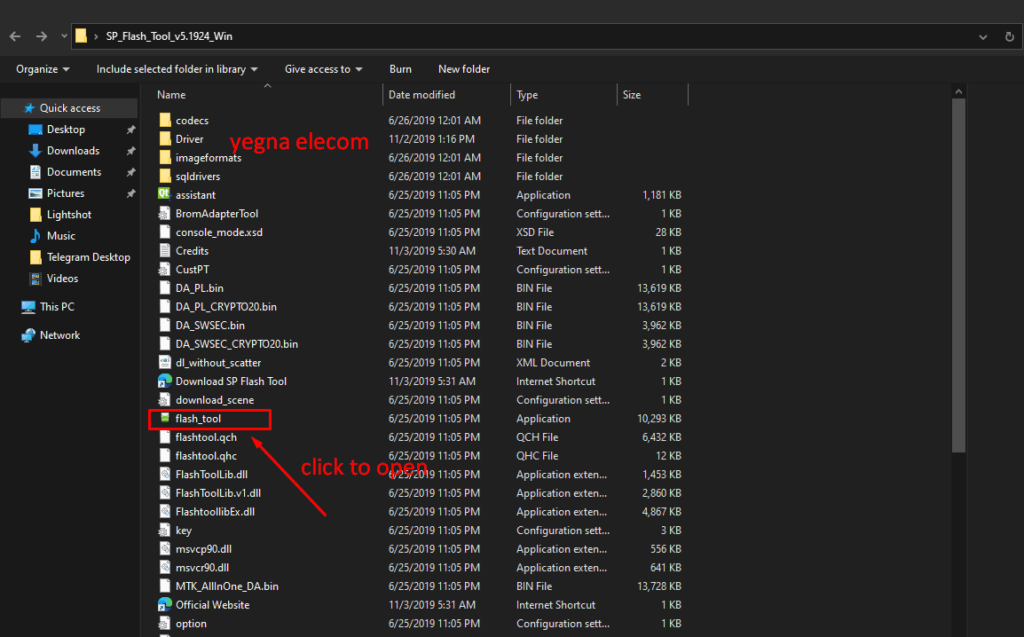
- Run the Installer: Locate the extracted folder and run the installer file (usually named “flash_tool.exe” or similar).
How to flash All MTK Based Smartphones using SP Flash Tool:
Now that you have installed it on your PC, let’s dive into the step-by-step process of flashing Tecno and Infinix mobile devices:
Preparations:
- Back up your important data since flashing will erase all data on your device.
- Download the SP flash tool and the appropriate firmware/stock ROM for your Tecno or Infinix device from a trusted source.
- Enable USB Debugging on your device by going to “Settings” > “Developer Options” > “USB Debugging” and enabling it.
- Power off your device.
Installing the sp flash tool and selecting the correct file
- Launch SP Flash Tool: Open the installed SP Flash Tool on your computer by locating the program in your Start menu or desktop shortcut.
Load Scatter File
- Load Scatter File: click on the “Scatter-loading” button. Locate and select the scatter file that came with the firmware you downloaded earlier. The scatter file contains information about the partition layout and memory map of your device.
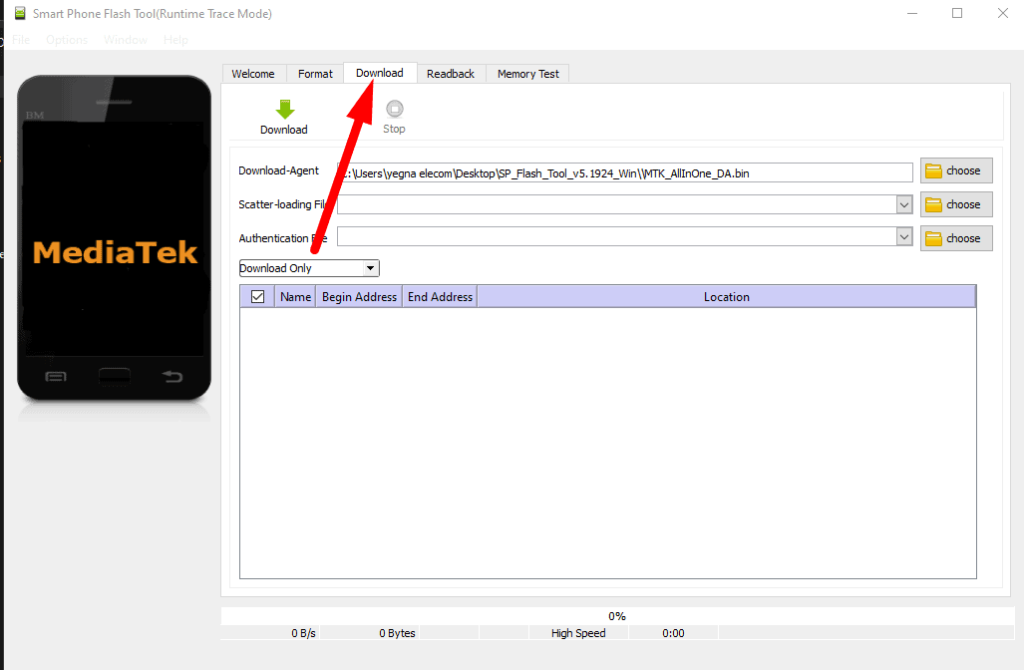
- Select Flashing Options: Once the scatter file is loaded, It will display a list of partitions and files to be flashed. By default, all partitions are selected. You can choose specific partitions to flash or leave the default settings as is.

- Connect Your Device: Power off your Tecno or Infinix device and connect it to your computer using a USB cable. Smartphone Flash Tool will detect your device and initiate the flashing process. If necessary, install the appropriate USB drivers for your device.

- Begin Flashing: Click on the “Download” or “Firmware Upgrade” button in SPFlash Tool to start the flashing process. It will begin transferring the firmware files to your device. Do not disconnect your device during this process.
- Flashing Complete: Once the flashing process is complete, you will see a green circle or a “Download OK” message on the Tool. This indicates that the firmware has been successfully flashed to your device. You can now disconnect your device from the computer.
- Reboot Your Device: Power on your Tecno or Infinix device. It may take a few minutes for the device to boot up after flashing. During the first boot, the device may take slightly longer than usual to start as it sets up the newly flashed firmware.
if you get this error LIB DA does not match, please re-select DA | lib error sp flash tool | watch this video

https://www.youtube.com/watch?v=JY3Igo1Os0Q&list=PLA-SQLt-_josbC4LNQNGs2NgDYY06u20O,https://www.youtube.com/watch?v=E8Q4me3O43E&list=PLA-SQLt-_josCsdWwSK7canzlc9WPIQb7
Download the SP_Flash tool
For Windows SP_FLASH_TOOL V5.1924
For Linux SP_FLASH_TOOL V5.1916
Frequently Asked Questions (FAQs)
SP Flash Tool, also known as SmartPhone Flash Tool, is a software utility designed for MediaTek (MTK) chipset-based Android devices. It enables users to flash firmware, stock ROMs, and perform various operations on compatible smartphones and tablets.
SP Flash Tool is compatible with MediaTek-powered Android devices. This includes devices from brands such as Tecno, Infinix, Xiaomi, Oppo, Vivo, and many others.
SP Flash Tool allows you to flash stock firmware, custom ROMs, and custom recoveries. You can also upgrade your device’s firmware, format and hard reset your device, and perform other software-related operations.
When used correctly and with caution, SP Flash Tool is generally safe to use. However, it is important to follow instructions carefully and ensure you have the correct firmware files for your specific device to minimize any risks.
To install SP Flash Tool on your computer, you can download the installation file from official sources or trusted third-party websites. Once downloaded, run the installer and follow the on-screen instructions to complete the installation process.
To flash your Tecno or Infinix device using SP Flash Tool, you need to download the appropriate firmware for your specific device model. Then, launch SP Flash Tool, load the scatter file, connect your device, and initiate the flashing process. It is recommended to follow a detailed guide or tutorial specific to your device to ensure proper flashing.
Conclusion:
It is a powerful utility that enables you to flash firmware, stock ROMs, and perform various operations on MediaTek-powered devices like Tecno and Infinix. With the detailed steps provided in this guide, you can confidently install and utilize this Tool to enhance your device’s performance, resolve software issues, and stay up-to-date with the latest firmware. Remember to exercise caution and carefully follow the instructions to avoid any potential risks during the flashing process. Enjoy harnessing the full potential of your mobile device with the smartphone Flash Tool!


I need All mtk firmware